Crop, fit, or fill
Last updated: 2026-08-16
How ImageRecrop crop, fit, and fill modes differ, when circle crop still uses a square file, and which mode to pick for photos, logos, and banners.
The three output modes
ImageRecrop always exports a file at the width and height you set. The mode decides what happens to pixels that do not match that frame.
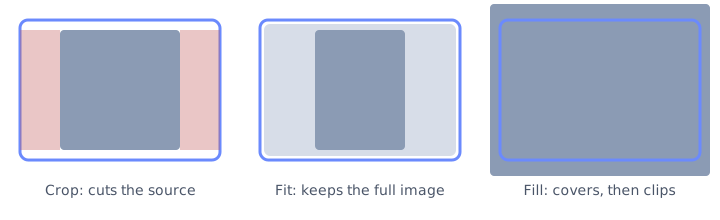
Crop is the default. The marching-box on the source image is the only region that is copied into the export. Anything outside the box is discarded. Use this when the subject has to fill the frame, such as an Instagram post or a YouTube thumbnail.
Fit keeps every source pixel visible. The image is scaled until it sits fully inside the target width and height. Empty bands are filled with the background color you pick, or left transparent if you export PNG or WebP with a transparent background. Use this for logos, screenshots, and diagrams that would lose meaning if anything were cut.
Fill scales the image until the frame is completely covered, then clips whatever hangs off the edges. It is the opposite of fit: no padding, but some of the source will be lost. Use fill when a solid background would look worse than a small crop, for example a photo wallpaper.
How to pick a mode
If the destination will crop your file again (Instagram, LinkedIn banners, X headers), start in crop mode at that platform's pixel size so you control the cut instead of the app doing it later.
If the destination must show the entire graphic (a slide, a product diagram, a logo on a marketplace), use fit. Set a background that matches the destination, or export PNG so the padding can stay transparent.
If you need a full-bleed photo at an exact size and can accept losing a strip of the source, use fill.
| Mode | Source pixels kept | Empty space | Typical use |
|---|---|---|---|
| Crop | Only the box | None | Social posts, thumbnails, avatars |
| Fit | All of them | Padding or transparency | Logos, screenshots, slides |
| Fill | Center of the scaled photo | None; overflow is clipped | Wallpapers and full-bleed banners |
Circle crop is still a square file
The circle profile preset looks round in the preview, but the downloaded file is a 400 by 400 square with pixels outside the circle removed. Most apps expect that square canvas and apply their own round mask on top.
Export PNG when you want the corners transparent. JPEG cannot store transparency, so the corners become the background color instead of empty pixels.
If the face sits off-center in the source, drag the circle rather than changing the output size. The 400 by 400 canvas is already large enough for most avatars after the destination scales it down.
Aspect lock, free size, and passport photos
Aspect lock keeps the crop box in proportion while you resize the handles. Unlock it only when you truly need a custom ratio that no preset matches.
Fit mode plus a locked ratio is a common mistake for ID photos. A passport crop should fill the 600 by 600 frame with the head in the right place, not letterbox a full-body photo inside a white square. Use crop, not fit, and check the current government rules before you submit. ImageRecrop only sets pixels. It does not certify a photo for official use.
Undo and redo in the editor step through crop position, size, and transform changes. Use them when you are comparing a tight crop against a little extra headroom.
Open the matching preset
The fit preset starts in fit mode at 1920 by 1080. The circle preset starts with a round mask at 400 by 400. Everything else starts in crop mode at the platform size listed in the size table.